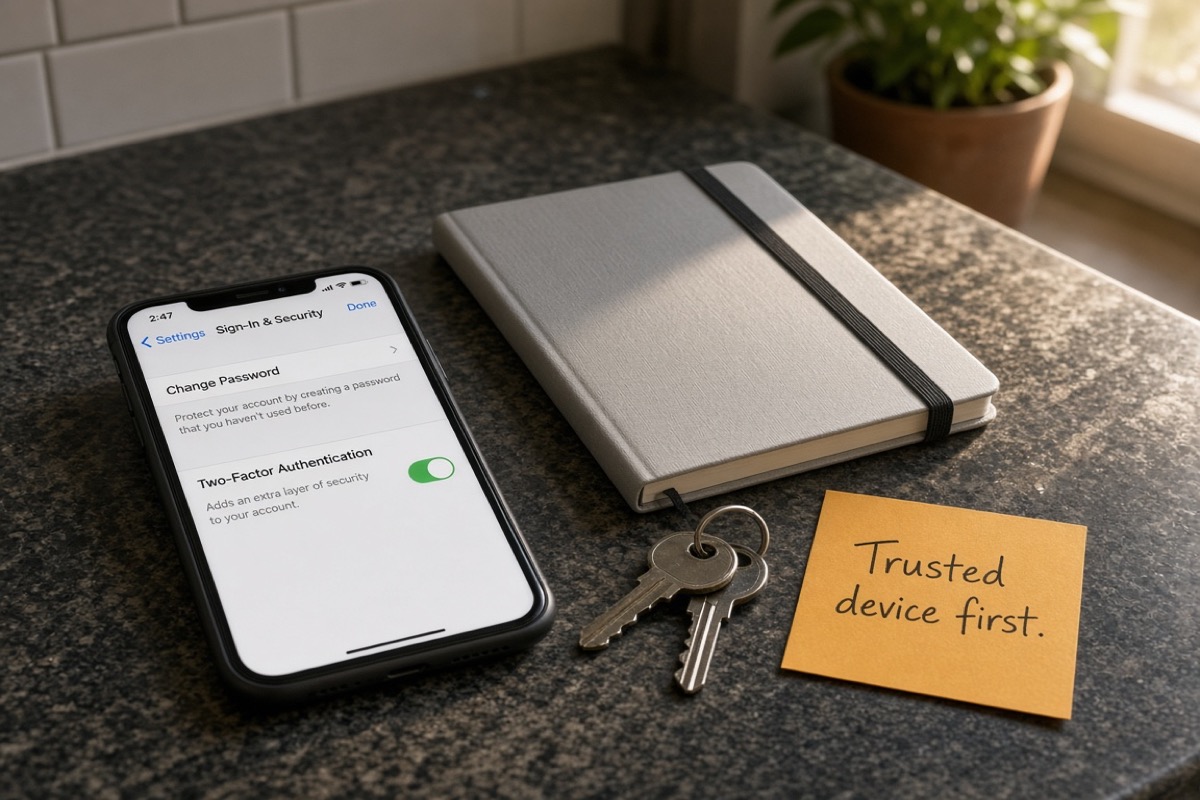
Which reset path should you take first?
The symptoms usually arrive together: iCloud Photos stops syncing, the App Store asks for a password, Messages will not send, Find My cannot locate a device, or the Xcode / TestFlight signing account expires. The OS is rarely broken. Two-factor authentication ties the password to a trusted device or a trusted phone number; miss one piece and you stay out.
Apple’s current name is Apple Account, not the older Apple ID label. Sign-in itself did not change. The official forgot-password page still ranks “device first, then the web.” Match your situation before you tap anything:
| What you still have | Do this first | Do not do this first |
|---|---|---|
| A signed-in iPhone, iPad, or Mac you can unlock | Change the password in Sign-In & Security | Do not start account recovery on iforgot |
| No device of your own, but a trusted phone number still works | Borrow a device and open the Apple Support app | Do not type your password into someone else’s signed-in account |
| You previously added a recovery contact | After you start recovery, get the six-digit code in person or by phone | Do not send the code to a stranger |
| You turned on a 28-character recovery key | Use the key plus a trusted-phone verification code | Do not assume standard account recovery is still on |
| None of the above | Start account recovery at iforgot.apple.com and plan to wait several days | Do not keep using this account on devices that are still signed in |
If you can reach a Mac at home that is still signed in, wait for that machine. A web reset is usually slower. Apple also says the browser redirects you to a trusted device when it can.
- List signed-in devices: phone, tablet, the Mac at home, the Mac at work
- If you can unlock one, change the password in Settings—do not tap Account Recovery first
- On-screen labels follow the device that day; steps follow Apple’s support pages
How do you reset the password on a trusted device?
A trusted device is an iPhone, iPad, Apple Watch, Apple Vision Pro, or Mac already signed in to that Apple Account with two-factor authentication. Apple treats the machine as yours, so it can change the password and other security settings. The trusted devices and trusted phone numbers page is blunt: if you have only one trusted device and codes go only to that device, losing it makes an immediate sign-in hard.
On iPhone, iPad, or Vision Pro: open Settings → tap your name → Sign-In & Security → Change Password → enter the device passcode, then follow the screen to set a new Apple Account password.
On a Mac: Apple menu → System Settings → your name → Sign-In & Security → Change Password → enter the Mac unlock password, then finish on screen.
On a new device that is not signed in yet, choose “Forgot password or don’t have an Apple Account?” in setup. If you already skipped sign-in, on iPhone / iPad open Settings → Apple Account → Sign In Manually → Forgot Password?; on a Mac open System Settings → Sign In → Forgot Password.
How do you reset without your own device?
If you cannot reach your own trusted device, borrow an iPhone or iPad from family or a friend, or use one at an Apple Store. When a trusted phone number still works, prefer the Apple Support app. Do not type your password into an account that is already signed in on the borrowed device.
- Open the Apple Support app on the borrowed device; install it from the App Store if needed.
- Scroll to Support Tools and tap Reset Password.
- Tap Help Someone Else.
- Enter your Apple Account email or phone number and finish on screen.
Apple states that the information you enter is not stored on the borrowed device. The web door is iforgot.apple.com. A web reset is usually slower; if you will soon have your own trusted device, wait for that one.
How does a recovery contact help you reset?
A recovery contact is a family member or friend you named in advance. When the account is locked, they can only give you a six-digit recovery code. They cannot sign in to your account. For privacy, Apple does not know who your recovery contacts are, so you have to remember whom you asked. Set up a recovery contact says: up to five people; both sides need iOS 15, iPadOS 15, or macOS Monterey 12 or later; Messages must be on; the age floor is often 13, subject to local rules.
Add path: Settings (or System Settings) → your name → Sign-In & Security → Recovery Contact → Add Recovery Contact. Family Sharing members are often added automatically; everyone else accepts the invite in Messages. If they decline or leave, you get a notification and can pick someone else.
When you actually need them: start account recovery on screen and verify some of your information, then meet or call the recovery contact. They generate a six-digit code on their device; you enter it on yours to reset the password. Helpers follow Help someone else as a recovery contact. Hand the code only in person or by phone; do not give it to anyone else who asks.
If Advanced Data Protection for iCloud is on, a recovery contact can also help unlock end-to-end encrypted iCloud data. How cloud storage is billed is a different question from this reset; the three-year bill is in iPhone 18 Pro 3-year cost.
How long does account recovery take?
Use account recovery only when two-factor authentication is on, you cannot change the password, and neither a trusted device nor a recovery contact is available. The account recovery page puts it after every other method. Open iforgot.apple.com in a browser on a device and submit what the screen asks.
For security, you may wait several days or longer before you can use the account again. Contacting Apple Support cannot shorten the wait. A confirmation email usually arrives within 72 hours and includes the estimated date and time you can reset. Accounts opened with a phone number and no email may use Messages instead. When the wait ends, Apple sends a text or an automated voice call. If nothing arrives, go back to iforgot with the same email or phone you used to start.
If you turned on a recovery key, standard account recovery is off. The recovery key page describes a 28-character key that you use with a verification code sent to a trusted phone number. Without the key and without a trusted device, the account may be permanently locked. Do not turn it on for “extra safety” until you have copied those 28 characters onto offline paper.
Hardware security can stop a stolen phone. It cannot stop you from locking yourself out. How Apple layers platform security is in 2027 Mac and Apple security capabilities; that is a different search from this password change.
Did the reset work? How do you avoid another lockout?
Typing a new password is not the same as having a usable account. Clear all five items before you install apps, sync photos, or sign Xcode:
| Check | Pass | If it fails, do this first |
|---|---|---|
| Sign-in | Settings or iforgot accepts the new password | Confirm the email / phone belongs to this account |
| Two-factor authentication | A trusted device or trusted phone can receive a code | Add a device or a phone before you change anything else |
| iCloud / App Store | Photos, backups, and the store open | Sign out and back in once—do not reset three times in a row |
| Other devices | The devices you chose to keep stay signed in | If you signed them out, sign each one back in |
| A way back in | At least one recovery contact, or a second trusted device | Add one now; do not wait for the next lockout |
During the reset, the system may ask whether to sign out other devices that use the account. If a Mac at home is still signed in, or a remote build machine still holds this account, think before you sign everything out—Xcode, TestFlight, and Find My drop together. How remote sessions sign in and leave a trail is in Mac remote-use notes. The near-term hardware window is unrelated to the account; you do not need October event rumors to finish a password change.
Three steps are enough to avoid another lockout: add a recovery contact you can actually call; add a second trusted phone number; turn on a recovery key only if you can copy all 28 characters onto offline paper. One iPhone that is both the only trusted device and the only number that receives codes will drop you into a multi-day wait the next time it breaks.
FAQ
Are Apple ID and Apple Account the same thing?
Yes. Apple renamed Apple ID to Apple Account. The same email or phone number and password still sign you in. Searches for “forgot Apple ID password” and “forgot Apple Account password” follow the same flow.
Can I recover the password without a phone verification code?
Yes, on a different path. A signed-in trusted device can change the password without waiting for SMS. Without a device, borrow one and use the Apple Support app, or get a six-digit code from a recovery contact. If you have neither, start account recovery and plan to wait several days.
Can a recovery contact sign in to my account?
No. They can only generate a six-digit recovery code for you. They get no account access. Apple also does not know who your recovery contacts are, so you have to remember whom you asked.
Can Apple Support speed up account recovery?
No. Apple’s documentation says contacting Apple Support cannot shorten the wait. Email usually arrives within 72 hours and includes the estimated time you can reset.
If I turned on a recovery key, can I still use regular account recovery?
No. Turning on the 28-character recovery key turns off standard account recovery. Without a trusted device, you must provide both the recovery key and a verification code sent to a trusted phone number. If you cannot produce the key, the account may be permanently locked.
Will other devices sign out after I change the password?
During the reset, the system may ask whether to sign out other devices that use the account. If you choose to sign them out, those devices must sign in again; Xcode, TestFlight, and Find My drop at the same time. If you are not sure, do not sign everything out.
After you reset, keep one always-on trusted device
This reset probably worked because an iPhone or Mac was still signed in. Next time, if that single phone is gone and nothing else stays signed in at home or at the desk, you are down to a recovery contact or days of account recovery. Signing, TestFlight, and Find My drop until the new password is entered on every device.
Once the on-device flow works, if you still need a macOS environment that stays on and stays signed in to the Apple Account, look at a dedicated node—steadier than parking the only trusted device on a laptop that closes. View ZekVPS cloud Mac mini plans